
Search View is the results of saved search query displayed in a format you choose. Each column lists all the values for a specific field included in your Search View. You can also add top 10 lists, which displays the 10 most frequent field values.
You can only use Search Views for queries using simple syntax. You can’t use advanced searches with aggregators, rex parsing, and pattern finding. You can create, edit, clone delete and and share Search Views with other Logpoint users. Go to Knowledge Base >> Search Views.
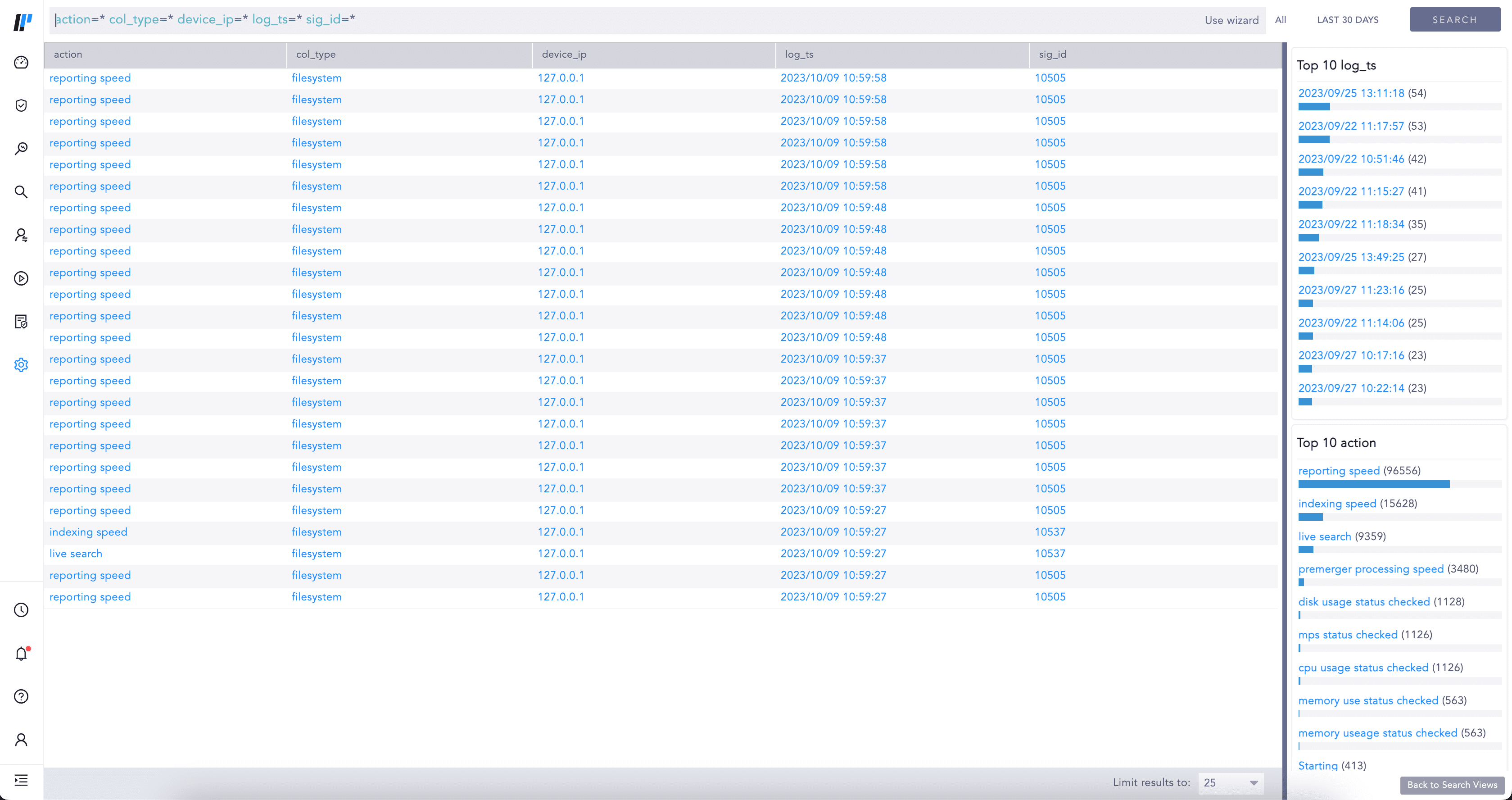
Search View
The Query Bar along with the Repo selector and Time range is at the top of a Search View.

Query Bar
The Result Panel displays the details of the selected Search View.
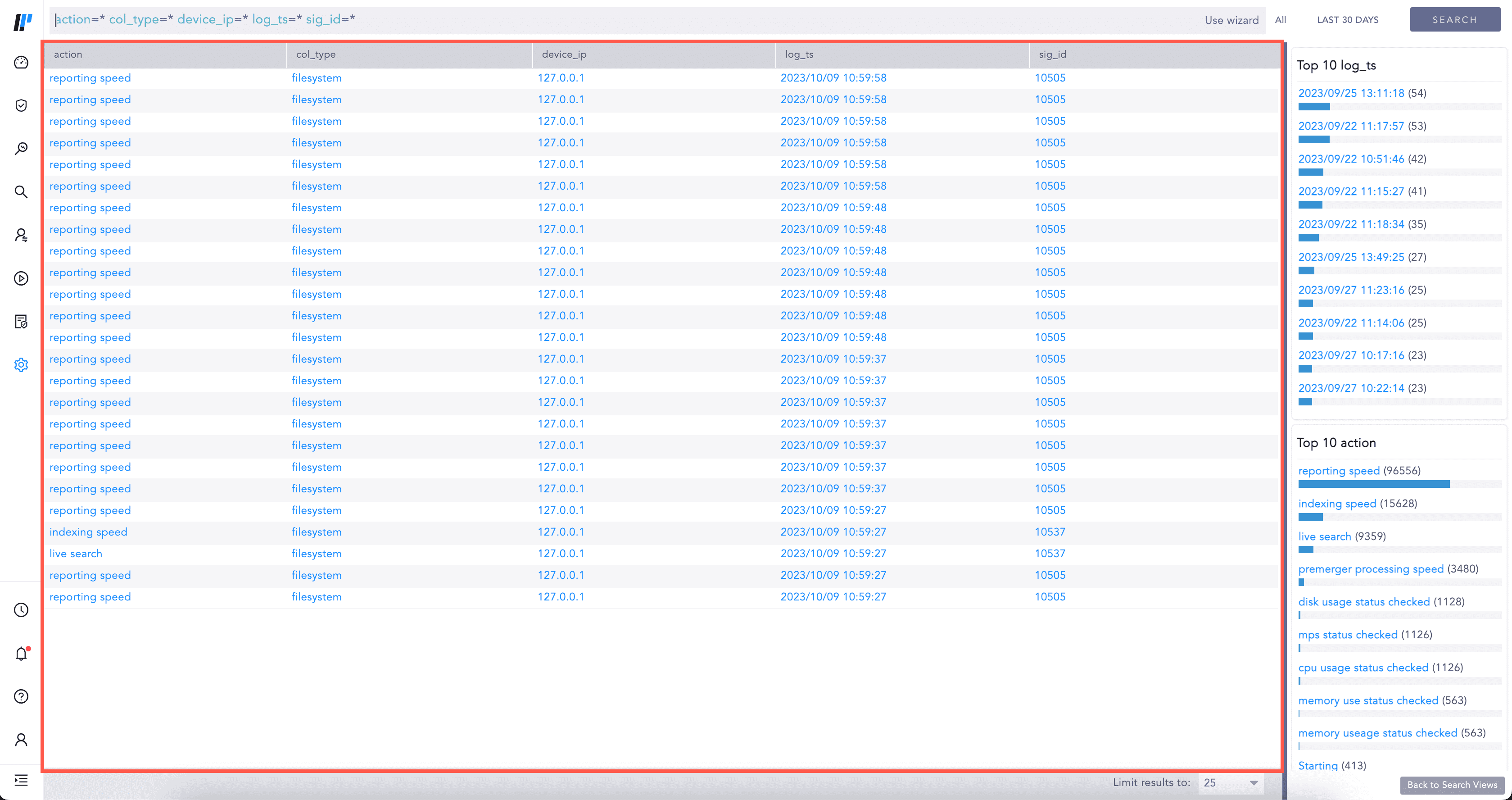
Result Panel
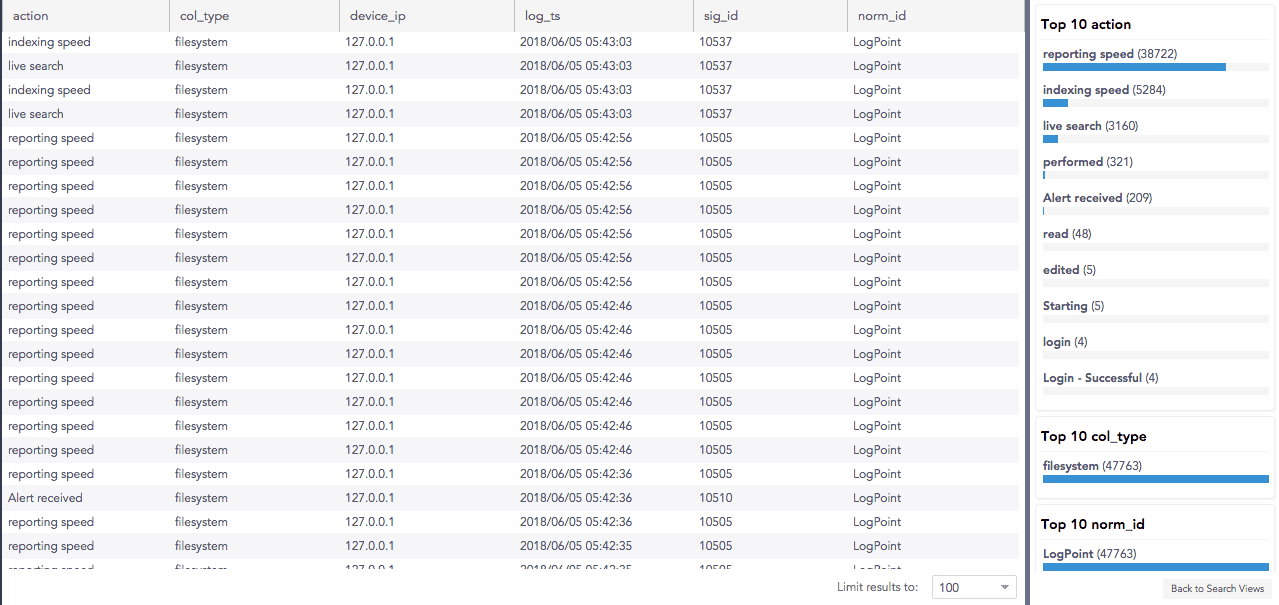
The Top-10 Panel displays the ten most frequently searched field values for several fields.
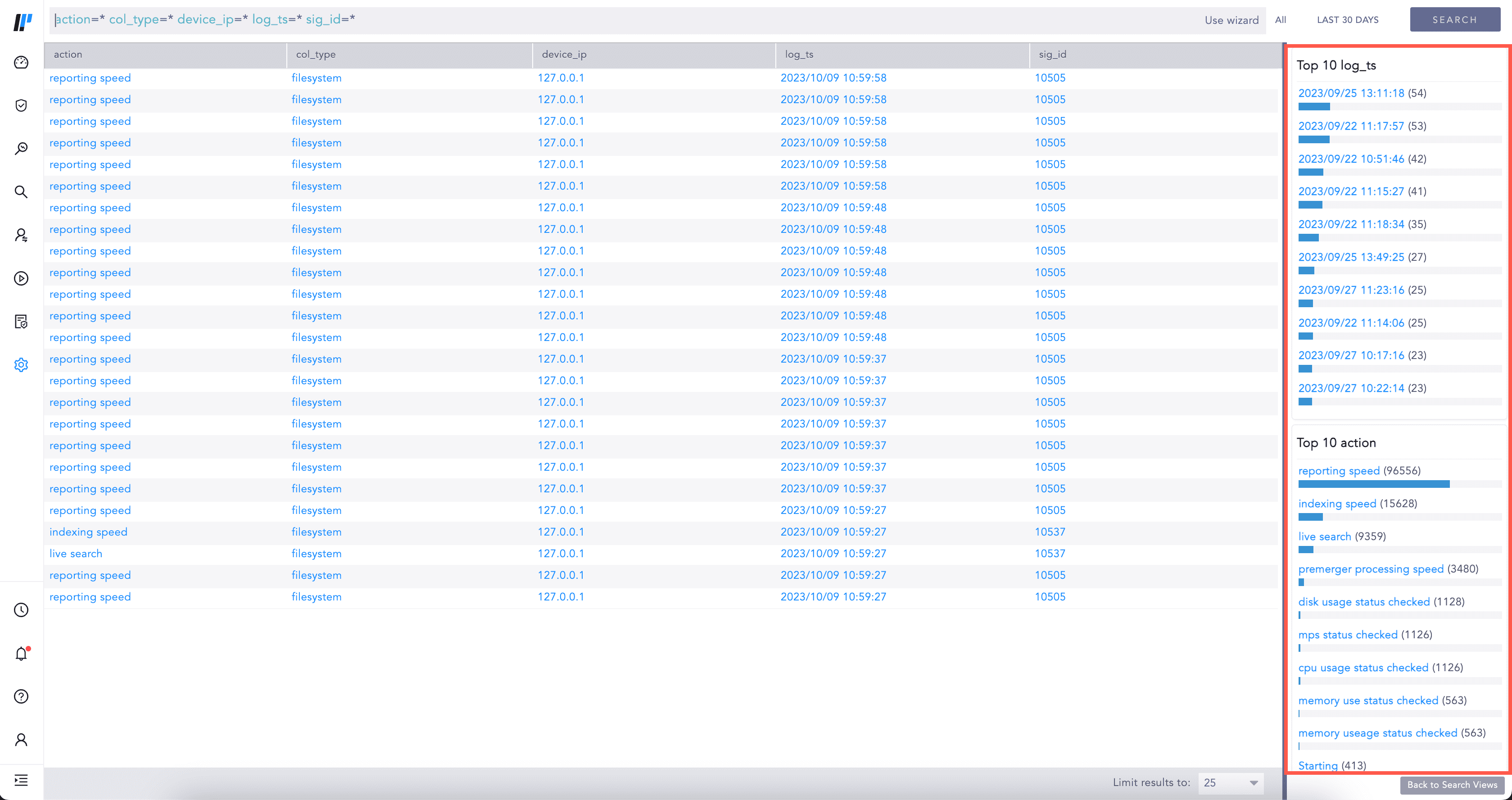
Top-10 field values
You can access a Search View in two ways:
Go to a Search View from Search >> Search Views.
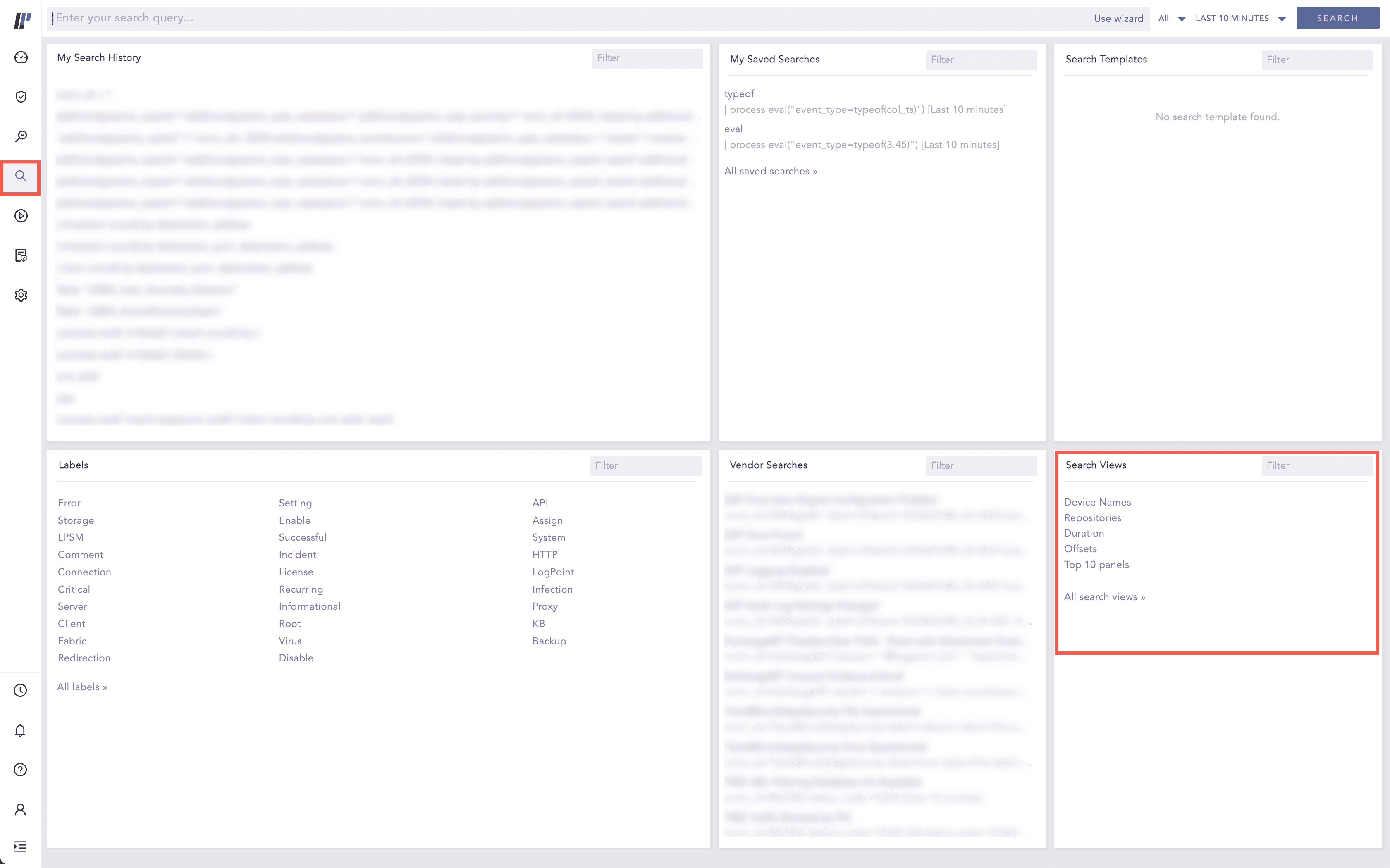
Accessing Search Views from the Search
Go to Settings >> Knowledge Base from the navigation bar and click Search Views. Click the Use Action icon for a Search View.
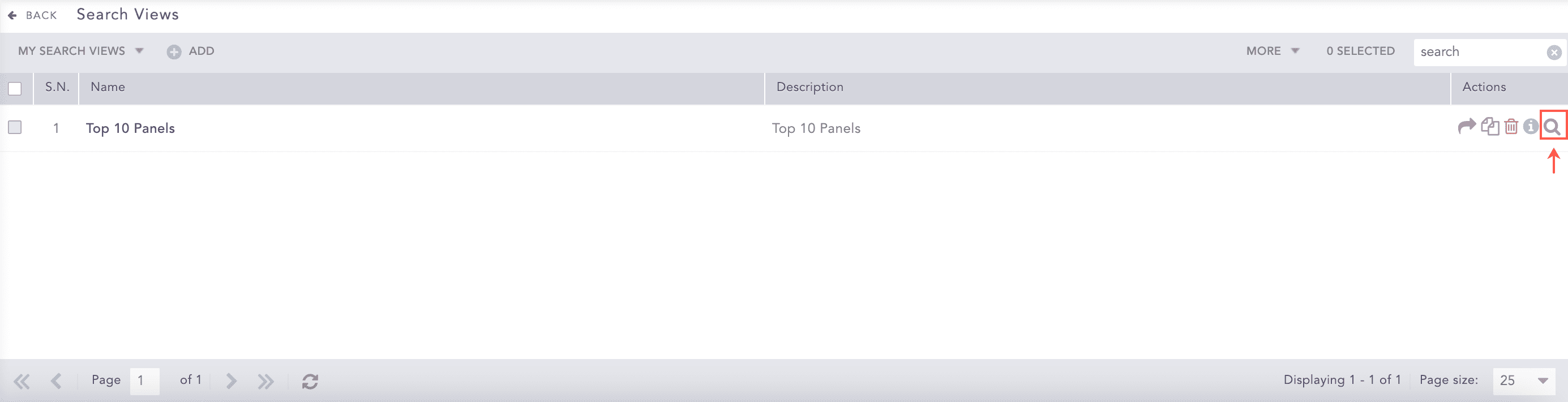
Search Views
Go to Settings >> Knowledge Base from the navigation bar and click Search Views.
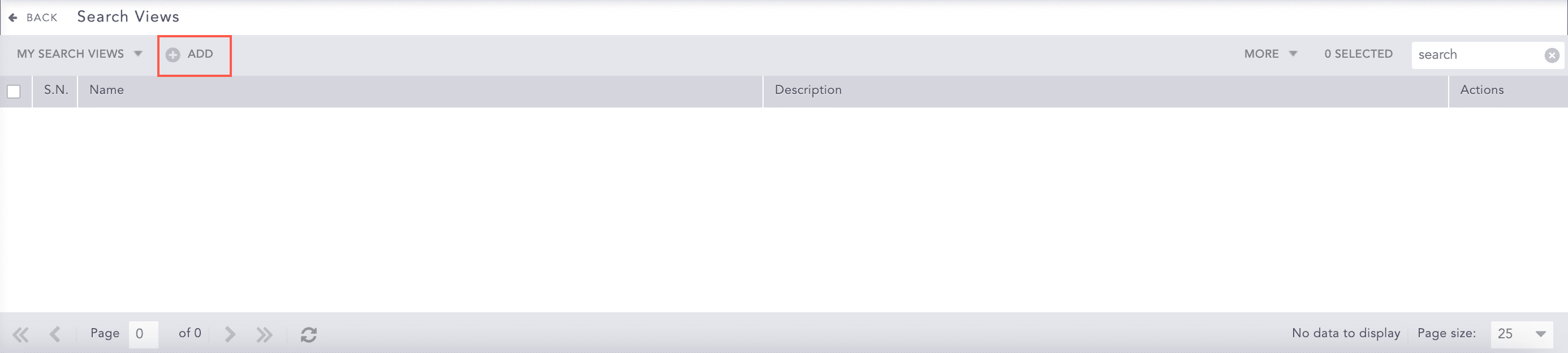
Search Views
Click Add.
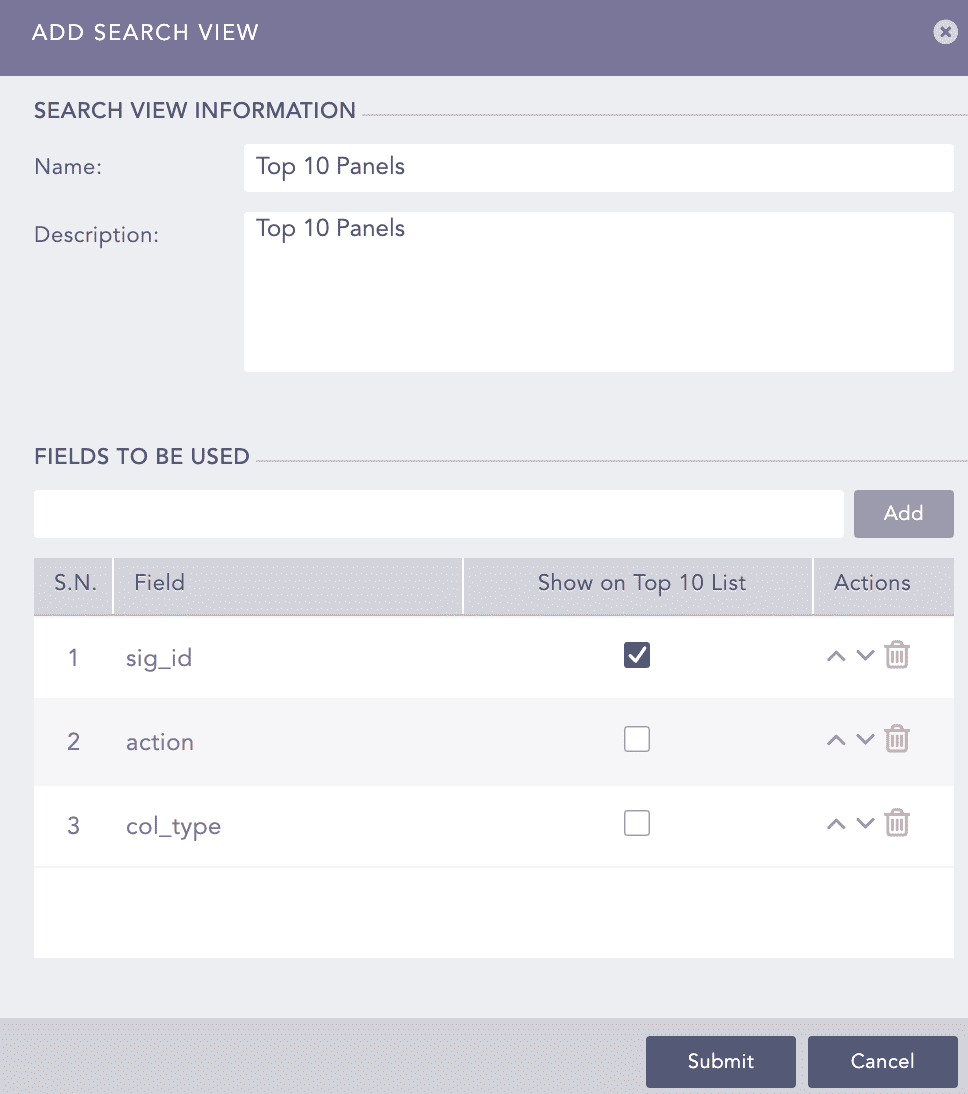
Add Search View
Enter a Name and a Description.
Enter the fields to be used and click Add. You can only add Normalized Fields in a Search View. Re-order the fields using the arrow keys in the Actions column.
Select the fields to Show on Top 10 List.
Click Submit.
Go to Settings >> Knowledge Base from the navigation bar and click Search Views.
Click the Search View you want to edit.
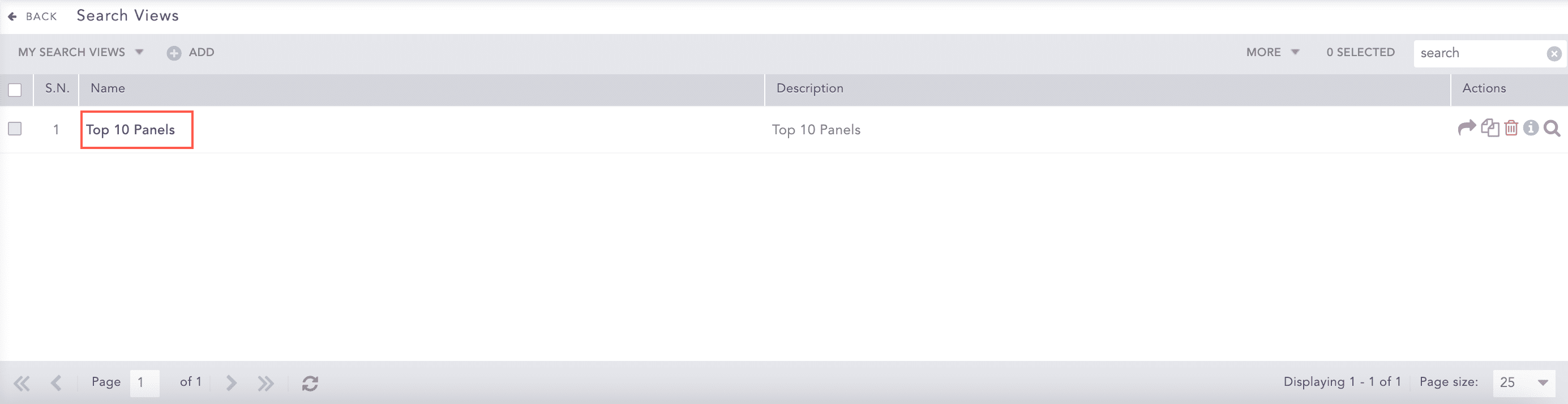
Editing a Search View
Update the information.
Click Submit.
Go to Settings >> Knowledge Base from the navigation bar and click Search Views.
Click the Click to Share icon in the Actions column.
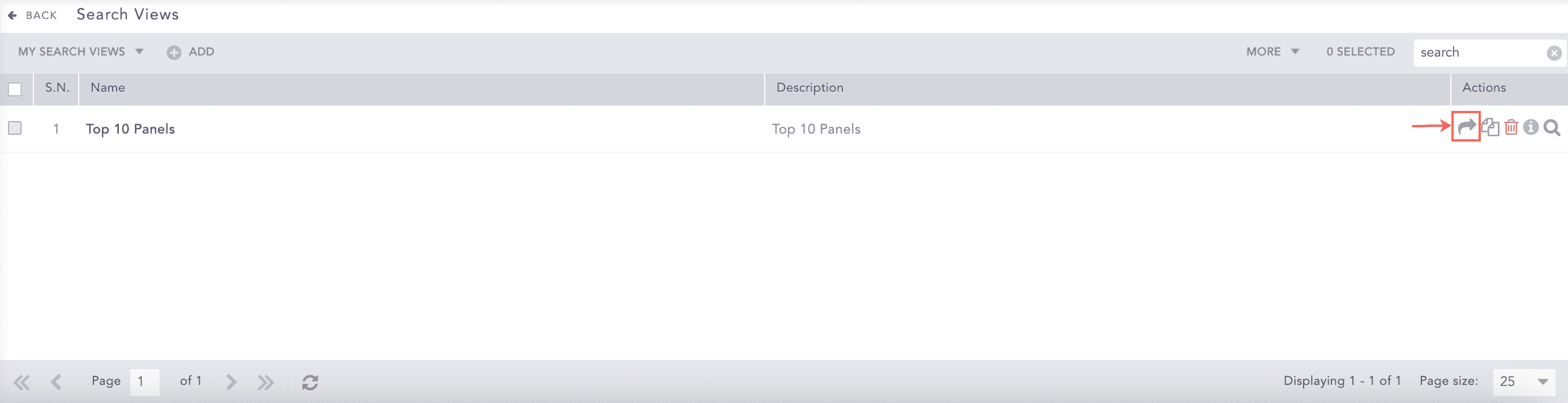
Share Search View
To share multiple Search Views, select multiple Search Views, click the More drop-down and click Share Selected With Other Users.
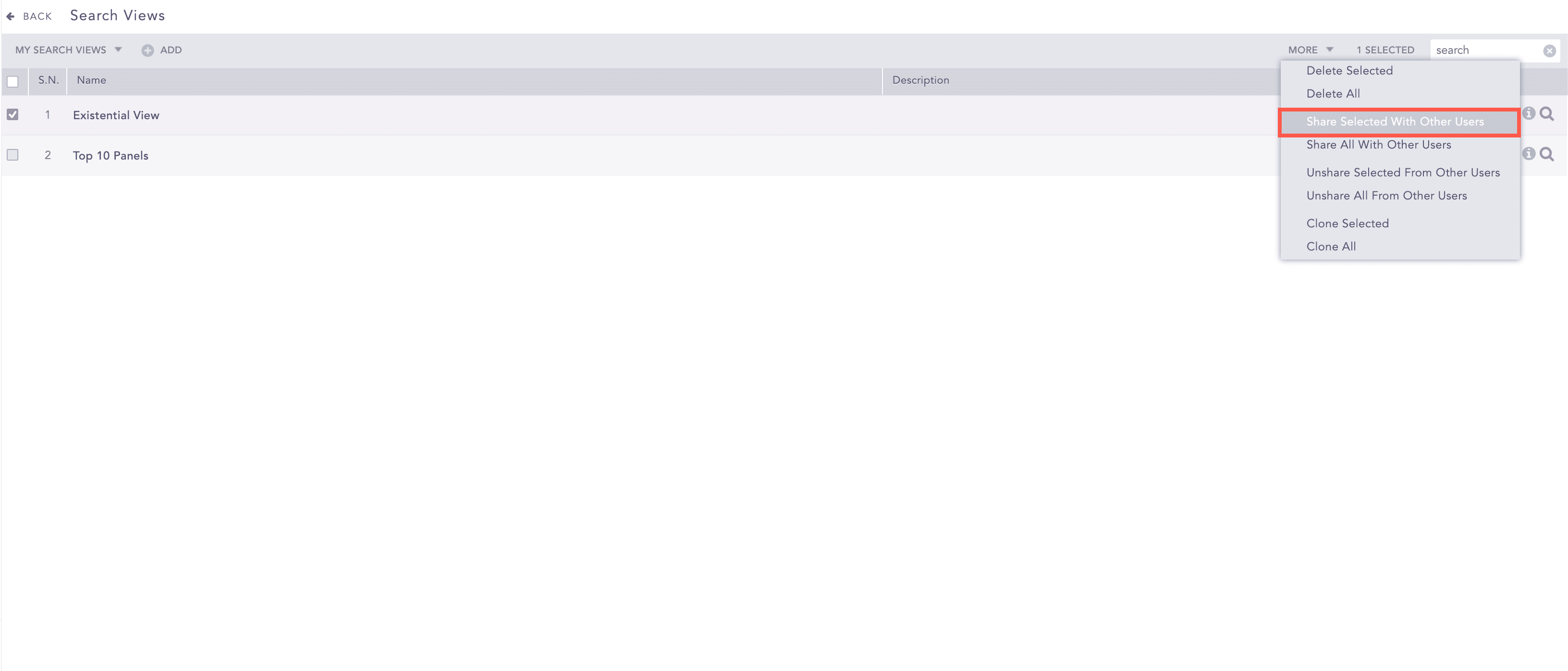
Share Search View
To share all Search Views, click the More drop-down and click Share Selected With All Users.
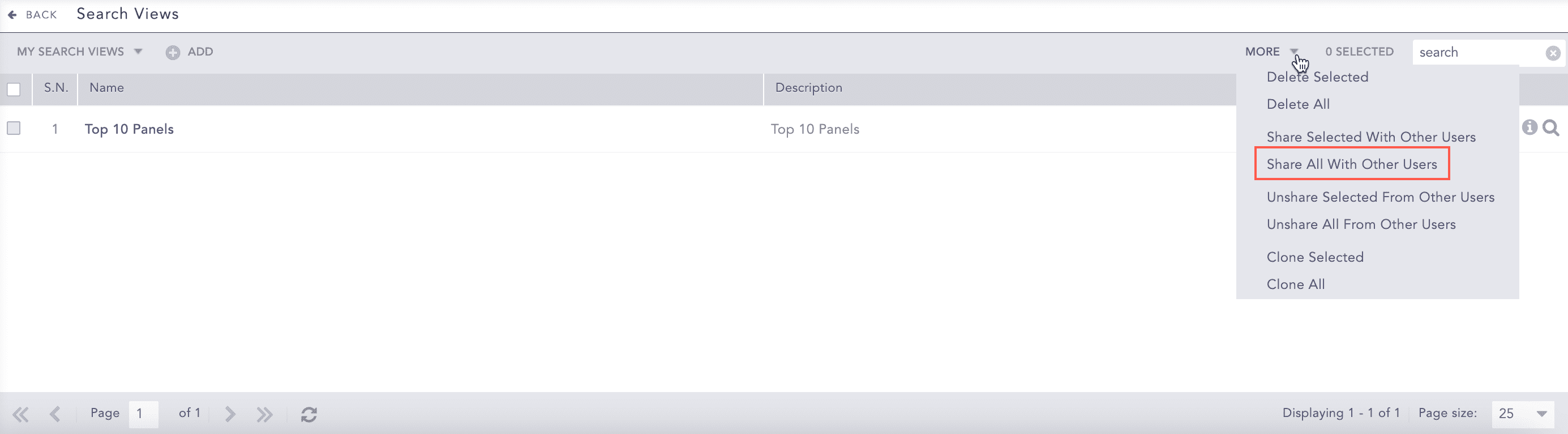
Share All Search Views
Note
Follow the same method to Unshare Search Views.
Go to Settings >> Knowledge Base from the navigation bar and click Search Views.
Click the Clone icon in the Actions column.
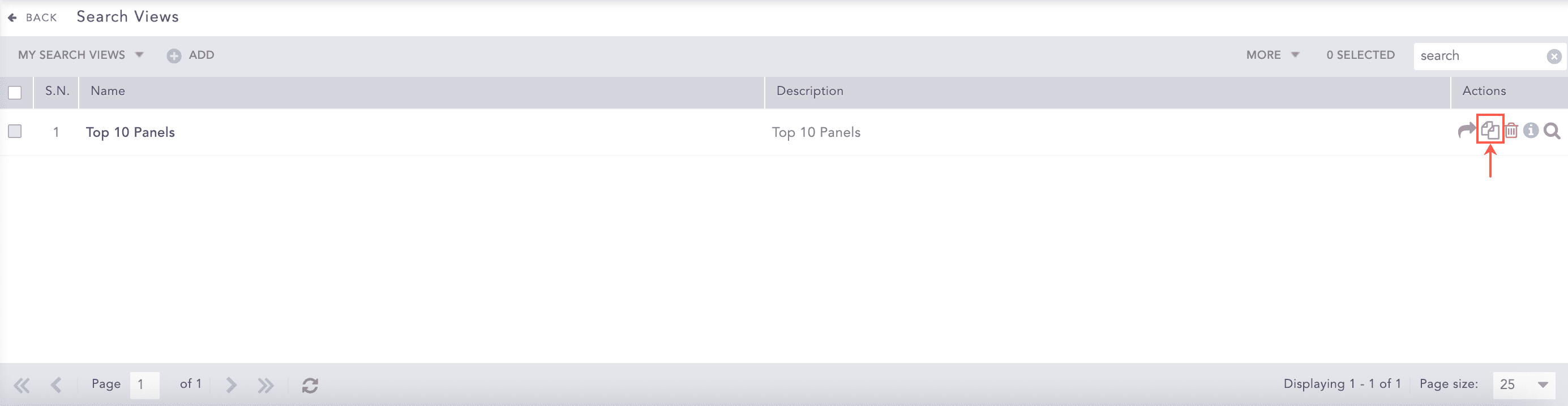
Clone Search View
To clone multiple Search Views, select multiple Search Views. Click the More drop-down and click Clone Selected.
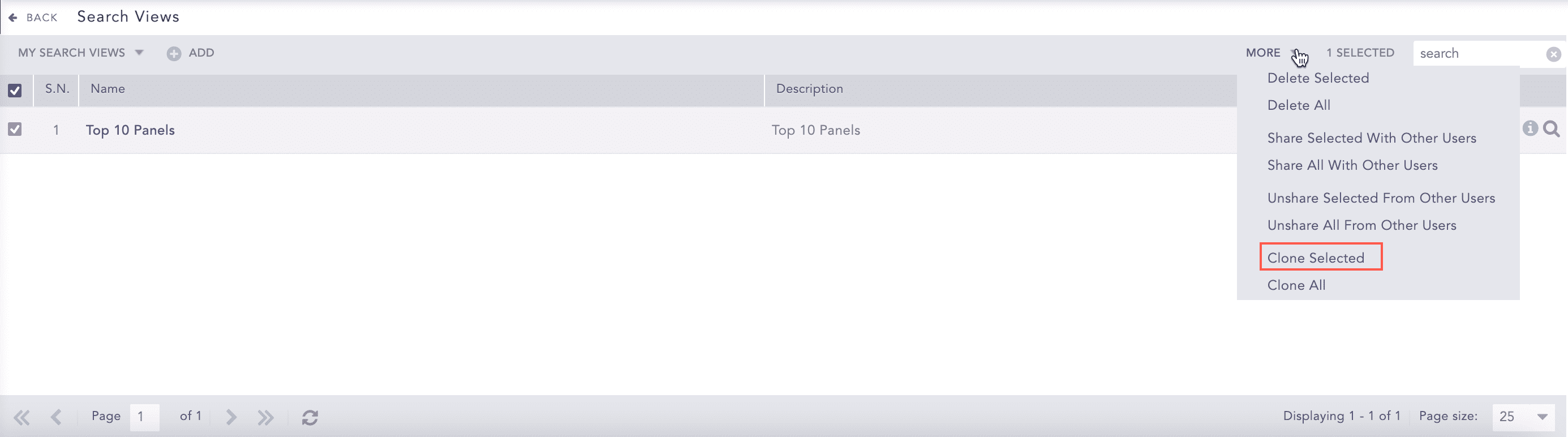
Clone Selected Search Views
To clone all Search Views, click the More drop-down and click Clone All.
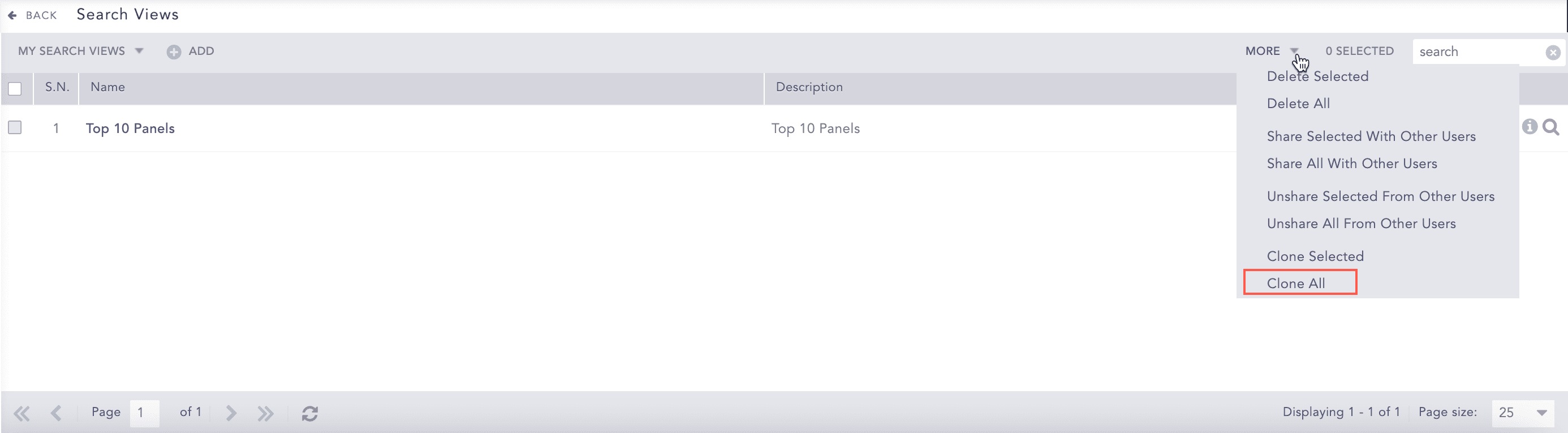
Clone All Search Views
Enter a new Name.
Select Replace Existing? to replace an existing view with the same name.
Click Clone.
Go to Settings >> Knowledge Base from the navigation bar and click Search Views.
Click the Delete icon in the Actions column.
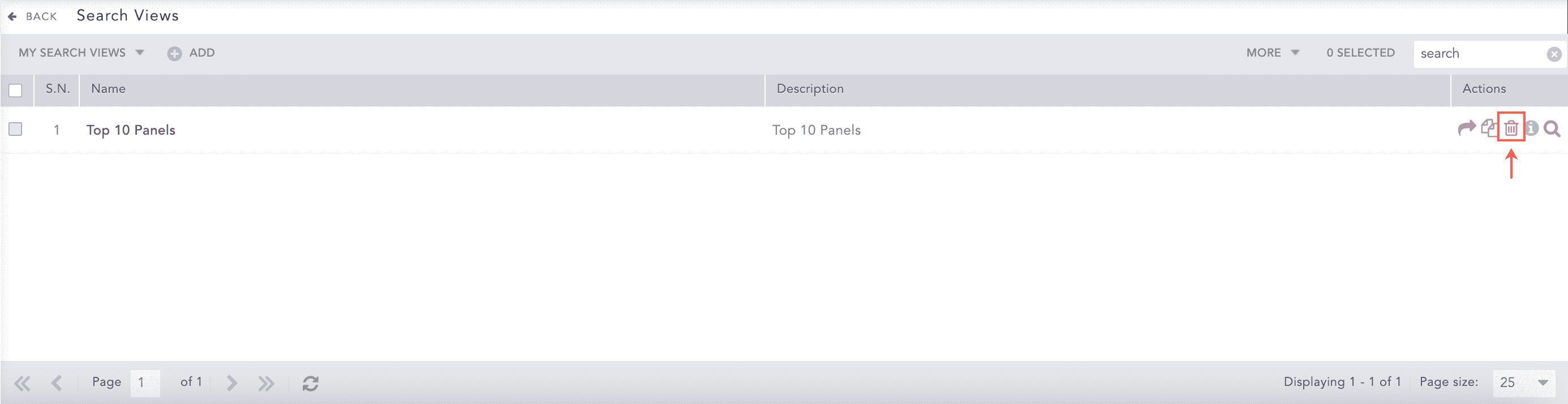
Delete Search View
To delete multiple Search Views, select multiple Search Views. Click the More drop-down and click Delete Selected.
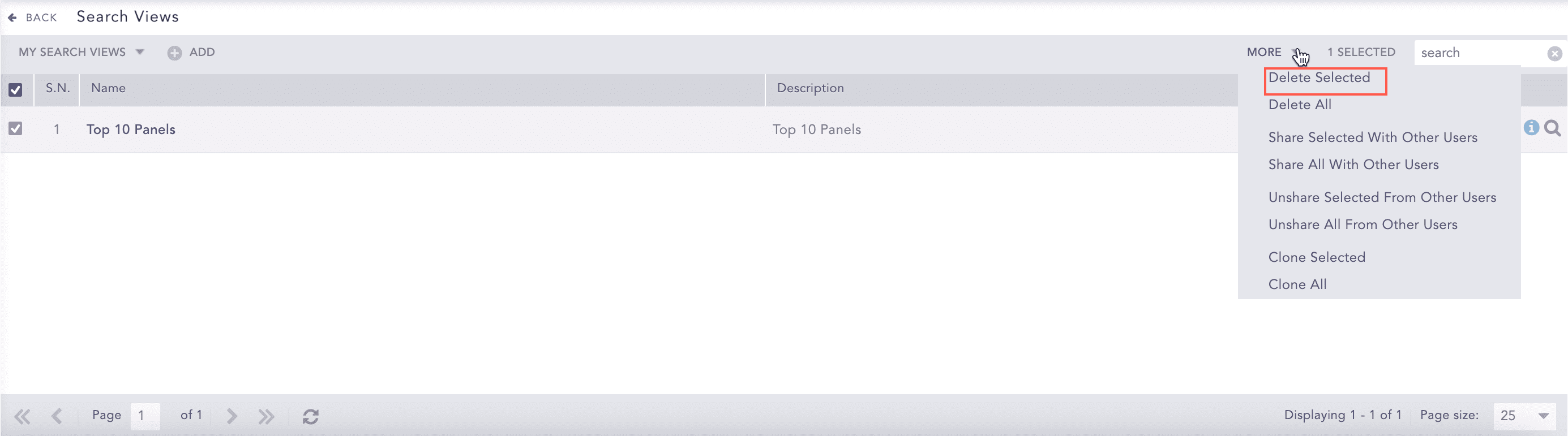
Delete Selected Search Views
To delete all Search Views, click the More drop-down and click Delete All.
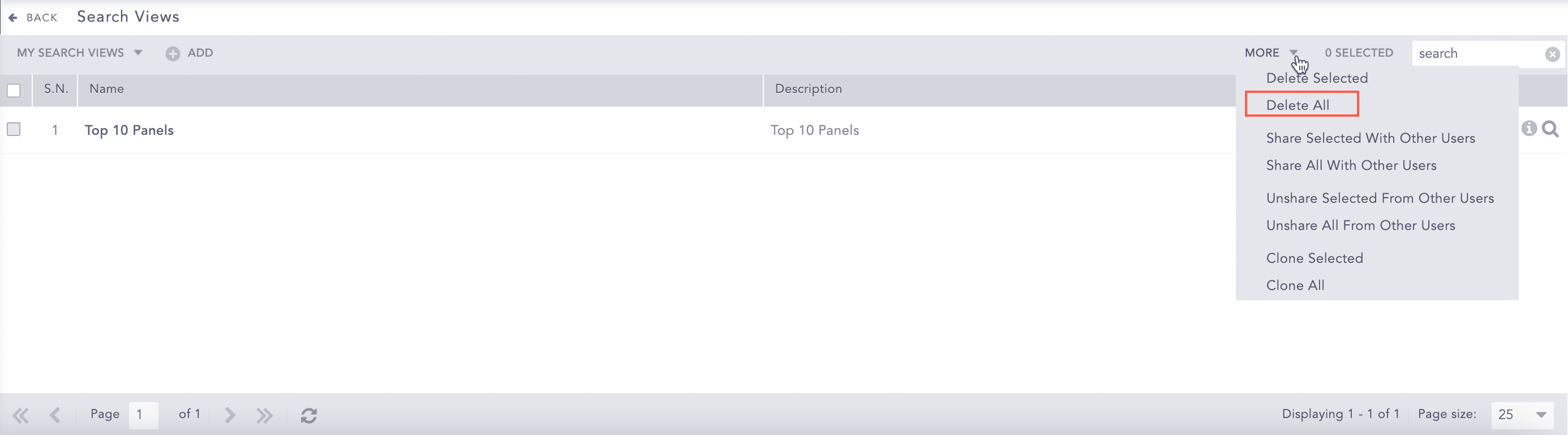
Delete All Search Views
Click Yes.
Note
Clone, Information, and Use are the only actions available for the Shared Search Views.
Go to Settings >> Knowledge Base from the navigation bar and click Search Views.
Click the Use icon in the Actions column of the Search View.
Using a Search View
Logpoint redirects you to the Search View. Here, you can manage all the information of the selected Search View.
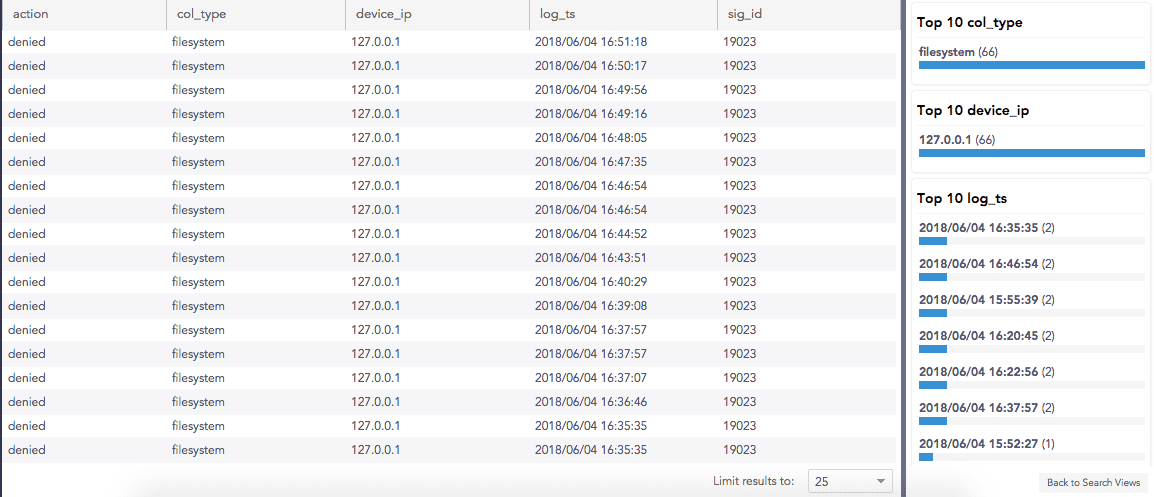
Search Views Interface
For example:
action=* col_type=* device_ip=* log_ts=* sig_id=*Note
Logpoint suggests some system fields in an auto-suggest box if you type any letter(s) followed by the space bar.
Use only the simple queries. Logpoint uses query validation to restrict the usage of aggregators, rex, norm, and rename commands.
Use the Repo selector to specify the repos to extract the logs. By default, all the repos are selected.
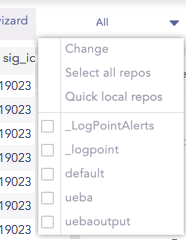
Search Views Interface
Specify the Time range to fetch the logs. By default, Last 10 minutes is selected.
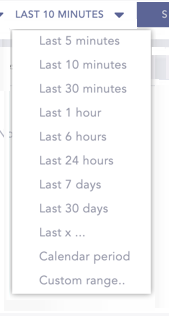
Search Views Interface
Limit Results to a specific number of logs per page. The default value is set to 25.
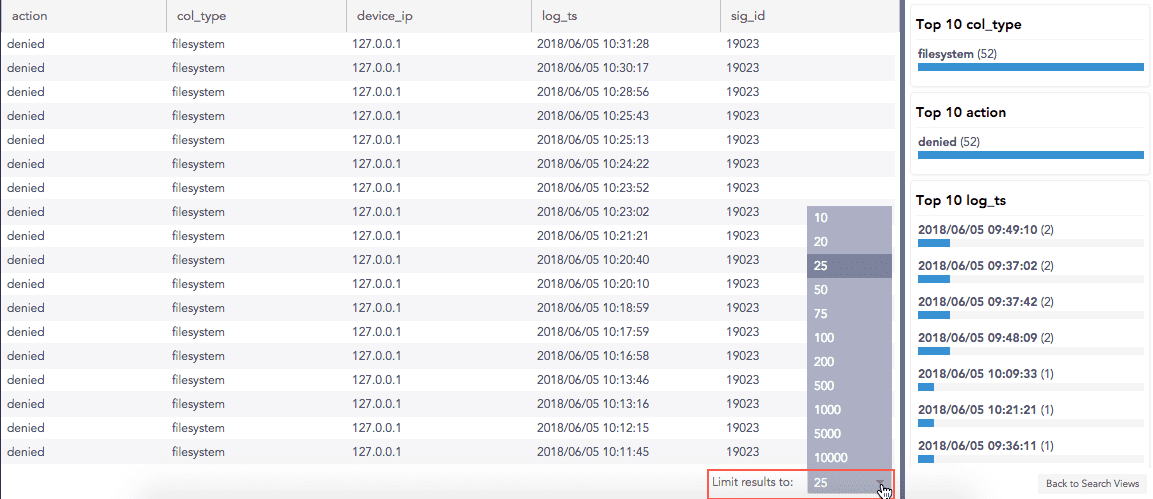
Search Views Interface
Click the search result in the Result Panel or the Top-10 Panel to perform a drill-down. The selected data appends to the query and is visible in the Query Bar.
For example,
Before drill-down:
action=* col_type=* device_ip=* log_ts=* sig_id=* norm_id=*
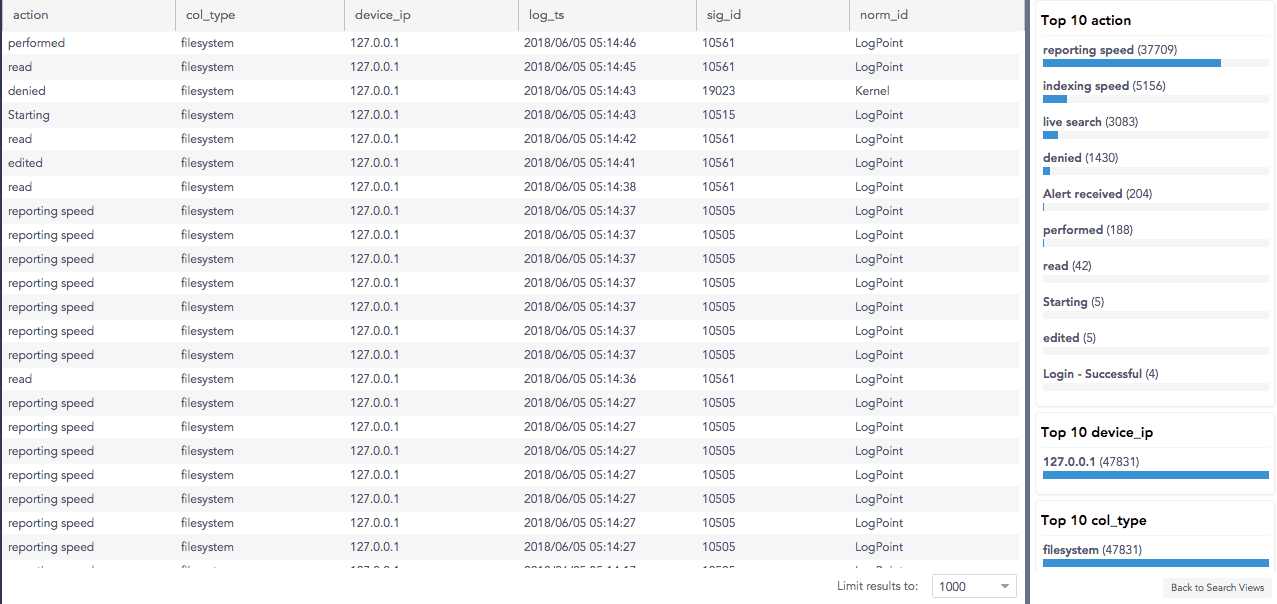
Search View Before Drilldown
After drill-down on action=”reporting speed”:
action="reporting speed" action=* col_type=* device_ip=* log_ts=* sig_id=* norm_id=*
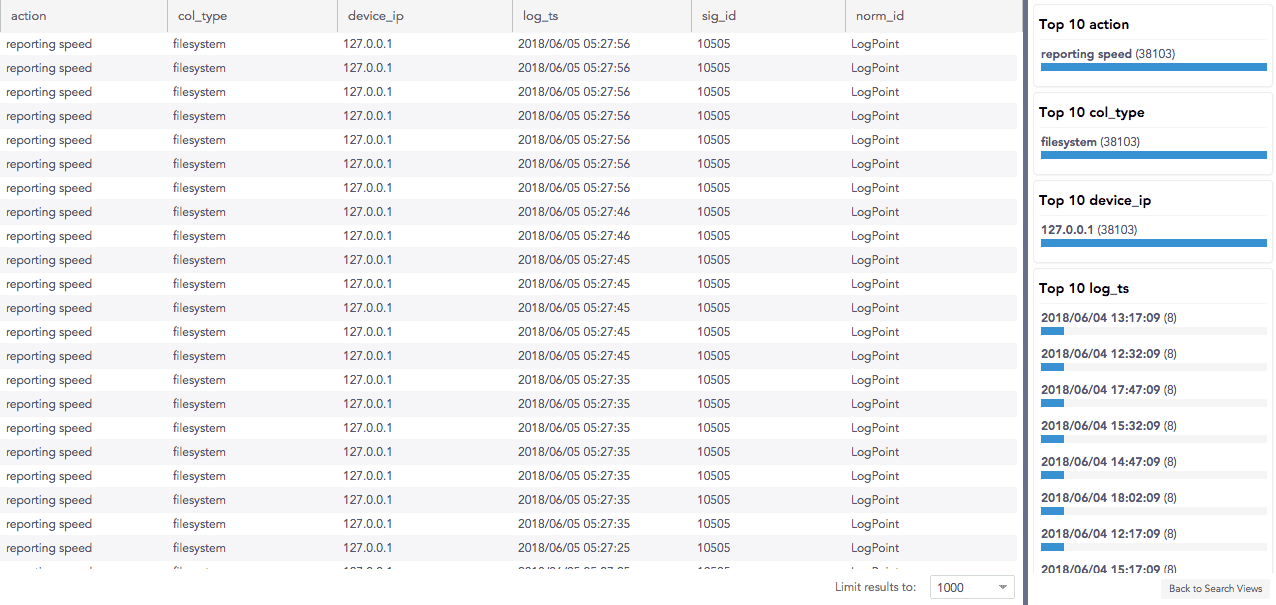
Search View After Drilldown
You can Negate the fields in the query to refine the search results from both the Top-10 Panel and the Result Panel. Press the command key (for Mac) or the Ctrl key (for Windows) and click the field component to carry out the negation.
For example,
Before negating:
action=* col_type=* device_ip=* log_ts=* sig_id=* norm_id=*
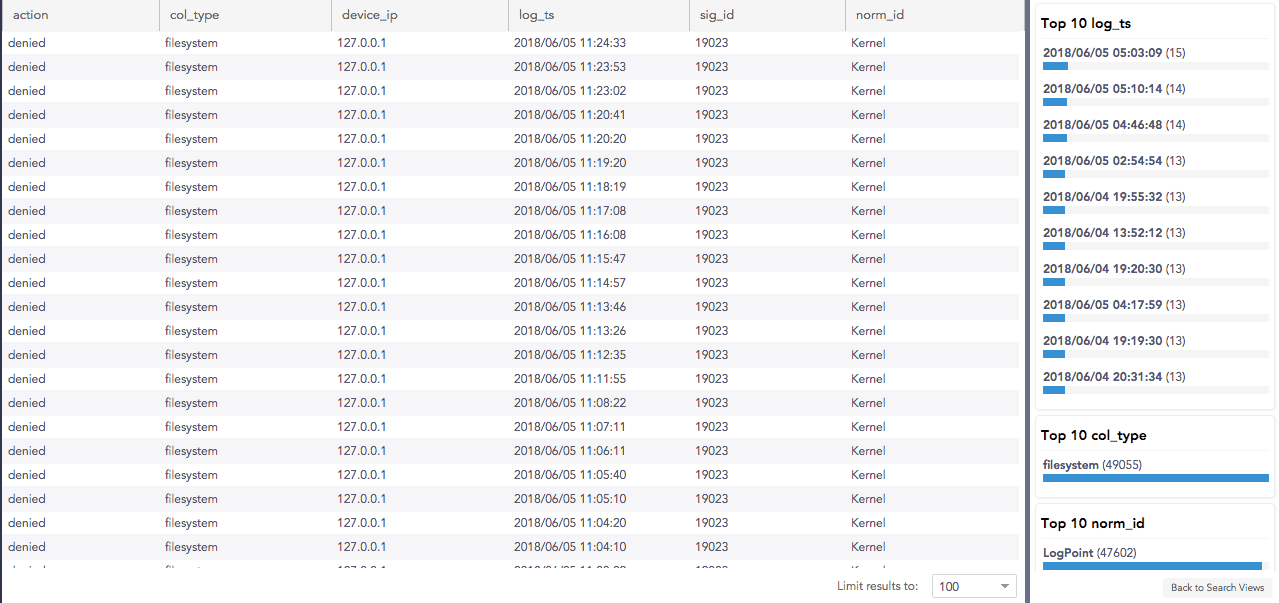
Before Negation
After negating on action=”denied”:
action= "denied" action=* col_type=* device_ip=* log_ts=* sig_id=* norm_id=*
After Negation
Note
In a Distributed Logpoint, you can access Search Views of remote Logpoints by switching between multiple Logpoints.
When Data Privacy Module is enabled, users with Can Request Access privilege can only view the values in encrypted form. These encrypted values cannot be requested for decryption.